This simple iPhone shortcut solves a problem Apple still hasn’t…
This Simple iPhone Shortcut Solves a Problem Apple Still Hasn’t Fixed
SEO Title: iPhone Shortcut to Access App Settings Faster – Solve Apple’s Missing Feature
Meta Description: Tired of digging through iOS settings? This iPhone shortcut lets you quickly access app settings without leaving your current app. Learn how to set it up and why it’s a game-changer.
Introduction: The Frustration of iPhone App Settings
As an iPhone user, you’ve likely encountered the frustration of navigating through multiple menus to adjust app settings. While iOS 26 has addressed some long-standing issues, Apple still hasn’t fixed one of the most annoying ones: the cumbersome process of accessing system-level app settings.
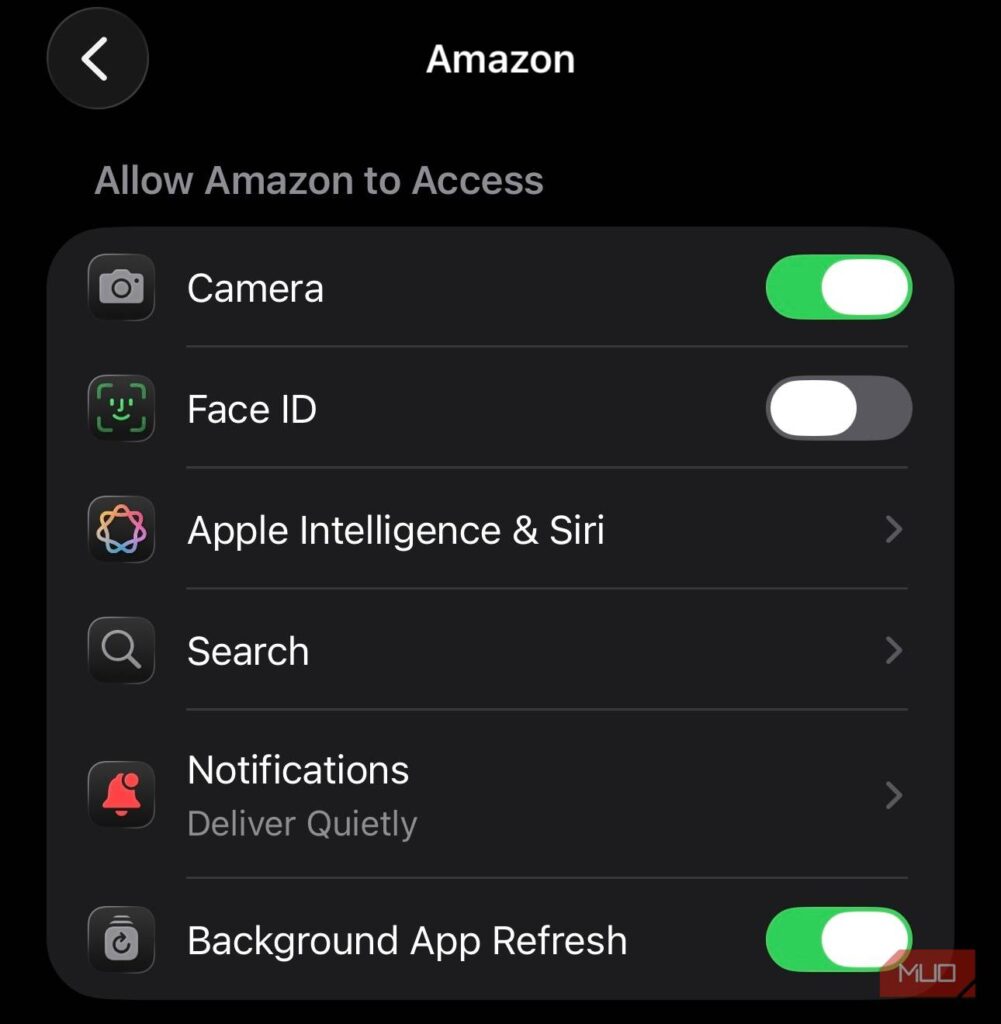
Unlike Android, which allows users to long-press an app icon to access its settings directly, iOS forces you to open the Settings app, scroll through lists, and tap multiple times just to adjust permissions, notifications, or other configurations. This disruption is especially problematic when you’re in the middle of an important task.
Thankfully, a simple iPhone shortcut can solve this problem—without waiting for Apple to implement a native solution.
How the App Settings Shortcut Works
The App Settings shortcut is a clever automation that bypasses iOS’s clunky navigation. Here’s how it works:
- Identifies the Active App – The shortcut detects which app is currently open.
- Extracts the App’s Unique Identifier – It pulls the app’s bundle ID (a unique code for each app).
- Generates a Settings URL – Using the bundle ID, it creates a direct link to the app’s settings page.
- Opens the Settings Page Instantly – The shortcut redirects you to the app’s settings without leaving the current app.
This process happens in seconds, saving you from manual menu-hopping.
Key Features & Benefits
1. Instant Access to App Settings
No more digging through the Settings app—just a single tap to reach the exact settings you need.
2. Works with Any App
Whether it’s social media, banking, or productivity apps, the shortcut adapts to the currently open app.
3. Multiple Activation Methods
You can trigger the shortcut via:
- Control Center (quickest method)
- Back Tap (double or triple tap the back of your iPhone)
- Action Button (on newer iPhone models)
4. Seamless Return to Your App
After making changes, a single tap takes you back to where you left off.
Use Cases for Business & Finance
This shortcut isn’t just a convenience—it’s a productivity booster, especially for professionals who manage multiple apps daily.
1. Quick Permission Adjustments
- Need to grant camera access to a banking app? Instead of navigating through Settings, just tap the shortcut.
- Temporarily disable notifications for a work app during a meeting? Done in seconds.
2. Faster Troubleshooting
- If an app crashes or misbehaves, quickly check its settings for updates or permissions.
- Adjust data usage for apps that consume too much background data.
3. Streamlined Workflows
- Switch between app settings without interrupting your workflow.
- Ideal for remote workers who frequently adjust app preferences for security or productivity.
How to Set Up the App Settings Shortcut
Step 1: Download the Shortcut
- Open this link on your iPhone.
- Tap Open when prompted, then Add Shortcut in the Shortcuts app.
Step 2: Choose Your Activation Method
Option 1: Add to Control Center (Recommended)
- Open Control Center (swipe down from the top-right corner).
- Long-press an empty space and tap Add Control.
- Search for Run Shortcut and select it.
- Choose the App Settings shortcut.
Option 2: Use Back Tap
- Go to Settings > Accessibility > Touch > Back Tap.
- Select Double Tap or Triple Tap.
- Choose the App Settings shortcut.
Option 3: Use the Action Button (iPhone 15+)
- Go to Settings > Action Button.
- Select Shortcut and choose App Settings.
Step 3: Start Using It!
- Open any app, then trigger the shortcut via your chosen method.
- The shortcut will instantly take you to that app’s settings.
Comparison with Alternatives
| Method | Pros | Cons |
|---|---|---|
| App Settings Shortcut | Fast, customizable, works with any app | Requires initial setup |
| Manual Navigation | No setup needed | Slow, disruptive workflow |
| Android’s App Info | Native, no extra steps | Only available on Android |
While Apple may eventually add a native solution, this shortcut is the best workaround for now.
Final Thoughts: A Must-Have for iPhone Users
The App Settings shortcut is a simple yet powerful tool that eliminates one of iOS’s biggest annoyances. Whether you’re managing work apps, adjusting privacy settings, or troubleshooting, this automation saves time and frustration.
For even more customization, check out Federico Viticci’s Open Settings shortcut, which lets you jump to specific iOS settings with ease.
Try it today and experience a smoother iPhone workflow!