The hybrid cloud setup that made me ditch paid Storage
The Hybrid Cloud Setup That Made Me Ditch Paid Storage
SEO Title: How I Saved $120/Year by Building a Hybrid Cloud with Nextcloud & Google Drive
Meta Description: Discover how combining Nextcloud and Google Drive created a cost-effective hybrid cloud solution that replaced my paid storage subscription. Learn setup steps, benefits, and trade-offs.
Introduction
My Microsoft 365 subscription was worth every penny—until my priorities changed. I replaced MS Word with Obsidian for note-taking, and suddenly, I was paying $120/year just for the 1TB of storage. When I revived my old laptop, I decided to experiment with self-hosting to see if I could save that annual cost without using a NAS. With an external storage drive, a decently specced computer, and a weekend to experiment, I built a hybrid cloud setup that works for my needs.
The Hybrid Cloud Concept
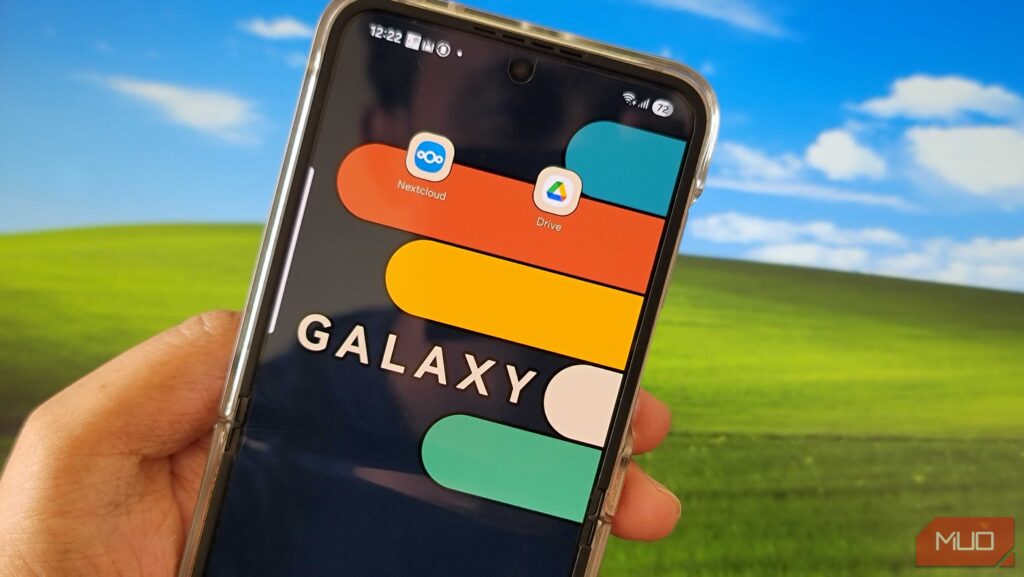
The idea was simple: turn my secondary laptop into a private cloud server using Nextcloud and Docker, then pair it with my secondary Gmail account’s 15GB of free Google Drive storage for off-site backup. This setup gives me local control over most of my files while keeping critical data backed up in the cloud.
Key Benefits:
- Cost Savings: Eliminates the need for paid cloud storage subscriptions.
- Data Control: Full ownership and control over your data.
- Flexibility: Customize your storage and backup solutions as needed.
- Security: Encrypted backups and local storage reduce reliance on third-party providers.
Setting Up Nextcloud in Docker
Getting Your Personal Cloud Running on Windows
To create your own private cloud server, you need two things: Nextcloud and Docker.
Nextcloud is an open-source, self-hosted platform that provides your own personal Dropbox or Google Drive—except it runs on your own hardware. However, running Nextcloud natively comes with the overhead of managing dependencies.
Docker simplifies this process by packaging all dependencies for Nextcloud in a single, isolated container. If something goes wrong, you can tear it down and start fresh without affecting your Windows installation.
Step-by-Step Setup:
-
Install Docker Desktop for Windows:
- Download and install Docker Desktop for Windows.
- During installation, enable the Use WSL 2-based engine option.
-
Create a Nextcloud Folder:
-
Create a folder for your Nextcloud setup (e.g.,
J:nextcloud). -
Inside, create a file named
docker-compose.ymlwith the following configuration:version: "3.8" services: db: image: mariadb:10.11 restart: always environment: MYSQL_ROOT_PASSWORD: yourpassword MYSQL_DATABASE: nextcloud MYSQL_USER: nextcloud MYSQL_PASSWORD: yourpassword volumes: - db:/var/lib/mysql app: image: nextcloud:latest restart: always ports: - "8080:80" depends_on: - db environment: MYSQL_HOST: db MYSQL_DATABASE: nextcloud MYSQL_USER: nextcloud MYSQL_PASSWORD: yourpassword volumes: - nextcloud:/var/www/html - ./data:/var/www/html/data volumes: db: nextcloud:
-
-
Run Docker Compose:
- Open PowerShell and navigate to your Nextcloud folder.
- Run the command:
docker compose up -d - Docker will download the necessary components and start your server. This may take a few minutes.
-
Access Nextcloud:
- Open your web browser and visit
http://localhost:8080to access the setup screen. - Create your admin account and configure the database settings as per your
docker-compose.ymlfile.
- Open your web browser and visit
Setting Up Sync on Your Devices
To access Nextcloud from other devices on your network, you need your server’s IP address. Open Command Prompt and run:
ipconfigLook for a Wireless LAN adapter, Wi-Fi, and find your IPv4 address. For example, if your IP address is 192.168.1.5, your Nextcloud server is accessible at http://192.168.1.5:8080.
Connecting Your Phone and PC to Nextcloud
-
Install Nextcloud Clients:
- Download and install the Nextcloud desktop client and mobile app (Android, iOS).
-
Configure Trusted Domains:
- Enter your Nextcloud container:
docker exec -it nextcloud-app-1 bash - Install a text editor if needed:
apt update && apt install nano -y - Edit the configuration file:
nano /var/www/html/config/config.php - Add your IP address to the trusted domains section:
'trusted_domains' => array ( 0 => 'localhost:8080', 1 => '192.168.1.5:8080', ), - Save the file and restart the container:
docker compose restart app
- Enter your Nextcloud container:
-
Sync Your Files:
- Connect using
http://192.168.1.5:8080and your admin credentials. - Choose which files to sync, and they’ll automatically upload to the Nextcloud server on your laptop.
- Connect using
Setting Up Duplicati with Google Drive for Backup
Duplicati handles the backup side of this hybrid setup. It’s a Windows app with a web interface that makes scheduling backups to Google Drive painless. Unlike command-line tools, Duplicati provides a visual interface for configuring everything, including encryption and retention policies.
Step-by-Step Backup Setup:
-
Download and Install Duplicati:
- Download Duplicati from the official website.
- Install and launch the app via the system tray.
-
Create a New Backup:
- Click Add backup and then Configure a new backup.
- Name your backup (e.g., “NextcloudBackup”) and set an encryption passphrase.
- For source folders, add
C:nextclouddata(or wherever your Nextcloud data folder is).
-
Configure Google Drive as Destination:
- Choose Google Drive and click AuthID.
- Grant Duplicati access to your Google account and copy the authentication code.
- Set the schedule to daily or as needed.
-
Add Local Backup for Redundancy:
- Create another backup configuration in Duplicati, but this time select Local folder or drive as the destination.
- Point it to your external drive (e.g.,
E:NextcloudBackup).
-
Configure Retention Policies:
- Keep 7 daily backups, 4 weekly backups, and 12 monthly backups for both destinations.
-
Automate Maintenance Mode:
-
Use the following scripts to put Nextcloud in maintenance mode before and after the backup:
docker exec -u www-data nextcloud-app-1 php occ maintenance:mode --on

docker exec -u www-data nextcloud-app-1 php occ maintenance:mode --off
-
Security and Reliability Improvements
While the basic setup works, there are several improvements worth considering for better security and reliability.
Security Hardening:
- Use HTTPS: Add a reverse proxy like Nginx Proxy Manager or Caddy with SSL certificates.
- Secure Database Passwords: Move your database passwords to a separate
.envfile. - Enable Two-Factor Authentication: Enhance security in Nextcloud’s settings.
Proper Backup Strategy:
- Backup Docker Volumes and Database: Use
mysqldumpto export the MariaDB database. - Test Restore Process: Regularly test your backup and restore process.
Better Container Management:
- Explicit Container Names: Add explicit container names to your
docker-compose.ymlfile. - Cron Container: Set up a cron container for Nextcloud’s background jobs.
Network Configuration:
- Restrict Access: Configure your Windows Firewall to restrict access to the NextCloud port.
- Use VPN: Consider using a VPN solution like Tailscale or WireGuard for secure remote access.
Monitoring and Maintenance:
- Set Up Monitoring: Alerts for server downtime.
- Configure Windows Update: Install updates during off-peak hours.
- Log Rotation: Prevent logs from consuming disk space.
- UPS Connection: Handle brief power outages.
Challenges and Trade-Offs
While this setup offers significant cost savings and control, it’s not without challenges.
Limitations:
- Accessibility: Files are only accessible on your home network unless you configure remote access.
- Uptime: Your laptop must stay on or wake on demand.
- Maintenance: Requires occasional troubleshooting and updates.
Time Investment:
- Initial setup took a weekend.
- Monthly maintenance takes about an hour or two.
Conclusion
This hybrid setup saves me $120 a year, but the real value came from understanding what cloud storage actually costs to run. For me, the trade-offs work. I enjoy tinkering with technology, my files don’t require constant remote access, and I prefer knowing exactly where my data resides. The hybrid approach gives me control over most of my storage while keeping cloud backup for what actually matters.
If you’re okay with occasional troubleshooting and don’t need everything synced everywhere, ditching paid storage for a hybrid setup might actually work for you, too.